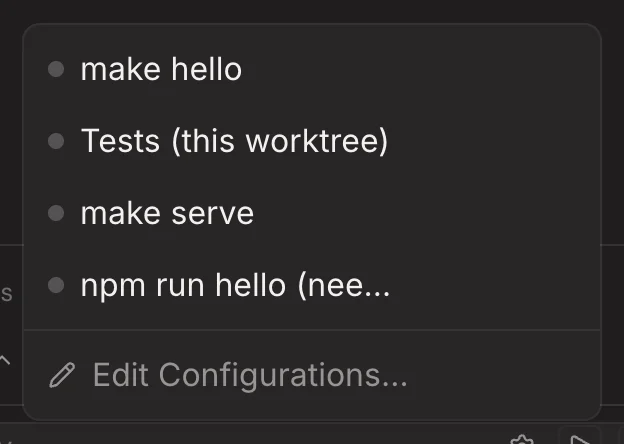
The Run menu is a list of commands for this repo, one keypress away: Cmd+R, type to filter, Enter to run. Each action runs in its own tab in the terminal section, and running it again reuses that tab.
Use this guide when you want a one-key way to start a dev server, run the tests, or any other command you type often.
The ▷ in the status bar opens the same list.
Before you start
You need a repo open in 10nx.
The quick way: ▶ in a Makefile or package.json
- Open the repo's
Makefileorpackage.json. - Press ▶ beside a target or script.
It runs, and it's now in the Run menu. 10nx saved it to your .10nx/settings.local.toml, so it's yours only. Press ▶ again any time.
Add one by hand
Add a [scripts.run.<id>] table to .10nx/settings.toml (for everyone) or .10nx/settings.local.toml (just you):
[scripts.run.test]
command = "npm test"
label = "Tests"
per_worktree = true

[scripts.run.dev]
command = "npm run dev -- --port $TNX_PORT"
label = "Dev server"
default = true
cwd = "web"
| Field | Does |
|---|---|
command |
What to run. Required |
label |
The name in the menu. The id otherwise |
args |
Arguments added after the command, each one quoted for you, so $VARS in them aren't expanded. Put those in command |
cwd |
A folder to run in, relative to the checkout |
per_worktree |
Run in the worktree you're in, with one tab per worktree. Off, it runs at the repo root wherever you start it |
default |
Put this action first |
hide |
Keep it off the menu |
Change or hide a shared action, just for you
Your local file can override any field of a shared action, by the same id:
# .10nx/settings.local.toml
[scripts.run.dev]
command = "npm run dev -- --port 4000"

[scripts.run.storybook]
hide = true
Deleting a shared action from the Run Configurations editor hides it for you rather than removing it from the shared file.
One at a time, or several
By default actions run side by side. To make starting one stop the others (handy when they all bind the same port):
[scripts]
run_mode = "nonconcurrent"
Check it worked
Press Cmd+R. Your actions are listed, the default one first. Pick one and its tab opens in the terminal section.
Next steps
- Scripts: every field, and how layers merge
- Set up a repo for worktrees:
TNX_PORTand preview URLs - Keyboard shortcuts