A workspace is a folder you've opened in 10nx, usually a git repo, with its own window, tabs and terminals. This page takes one task from start to finish: open a repo, give the task a worktree, let Claude work, and look at the diff.
Use this page after Install, when you're ready to point 10nx at a real project.
Before you start
You need:
- 10nx installed, with Claude Code installed and signed in (the first-run checks are green).
- A git repo on your Mac. It helps if it has an
originremote, but it doesn't need one.
1. Open the repo
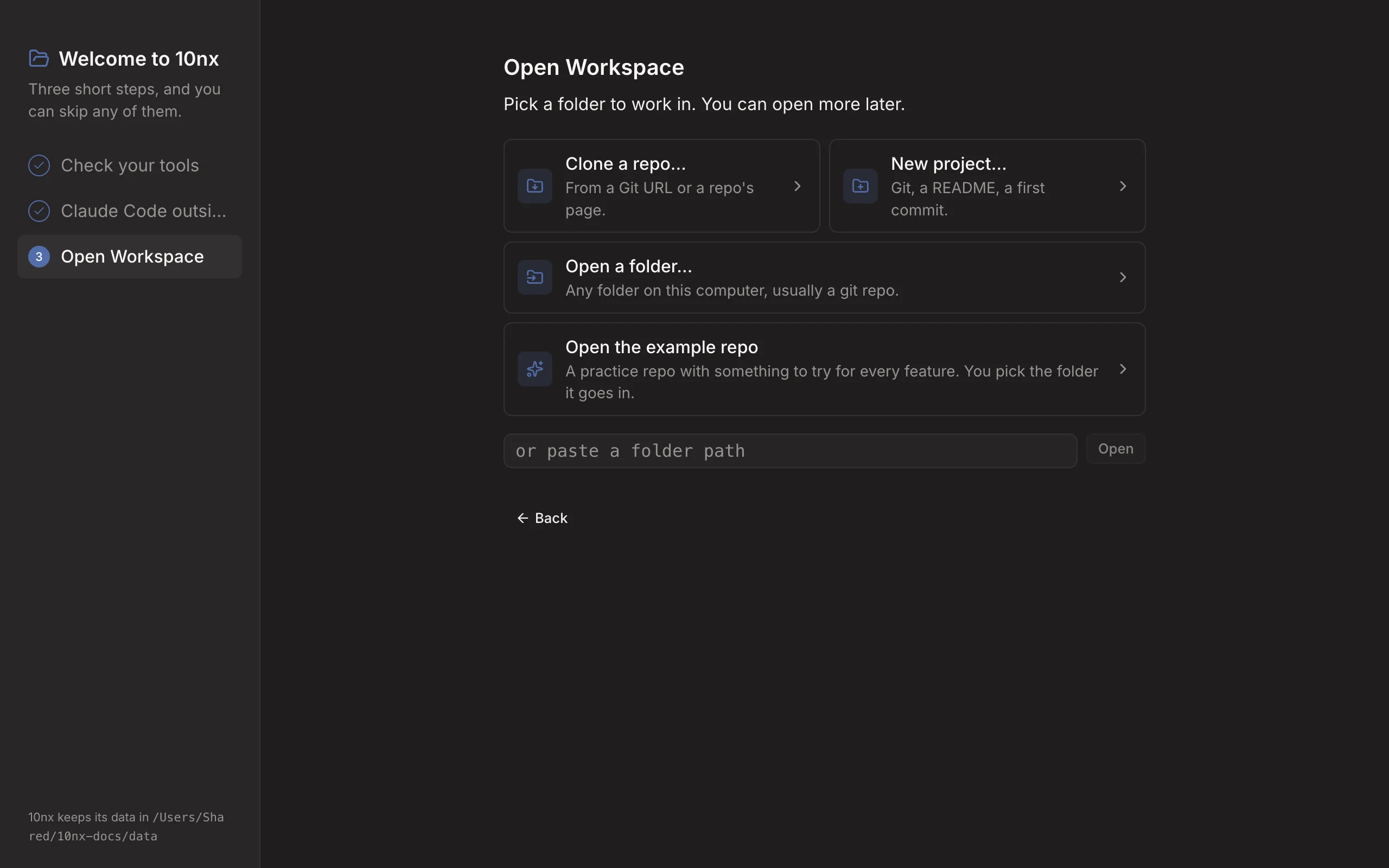
- On first run's Open Workspace step, choose Open a folder… and pick the repo's folder. Clone a repo… and New project… are there too, for a repo you don't have yet. Later, open more from the workspace switcher at the left of the status bar.
- 10nx opens a window for it: the file tree on the left, the editor in the middle, and the Claude and terminal sections on the right.
10nx writes a .10nx/ folder into the repo the first time it needs one, starting with .10nx/ignore. It never edits your .gitignore (The .10nx folder).
2. Create a worktree for the task
- Press Cmd+Shift+N, or the + at the end of the worktree strip in the bottom status bar.
- Name is filled in with a free short name (
oak,fern,moss…). Type your own if you like; it becomes the branch name too. - From is the branch to start from. Leave it empty for the repo's default branch. 10nx fetches it from
originfirst when there's one. - Press Create and start Claude (or Cmd+Enter).
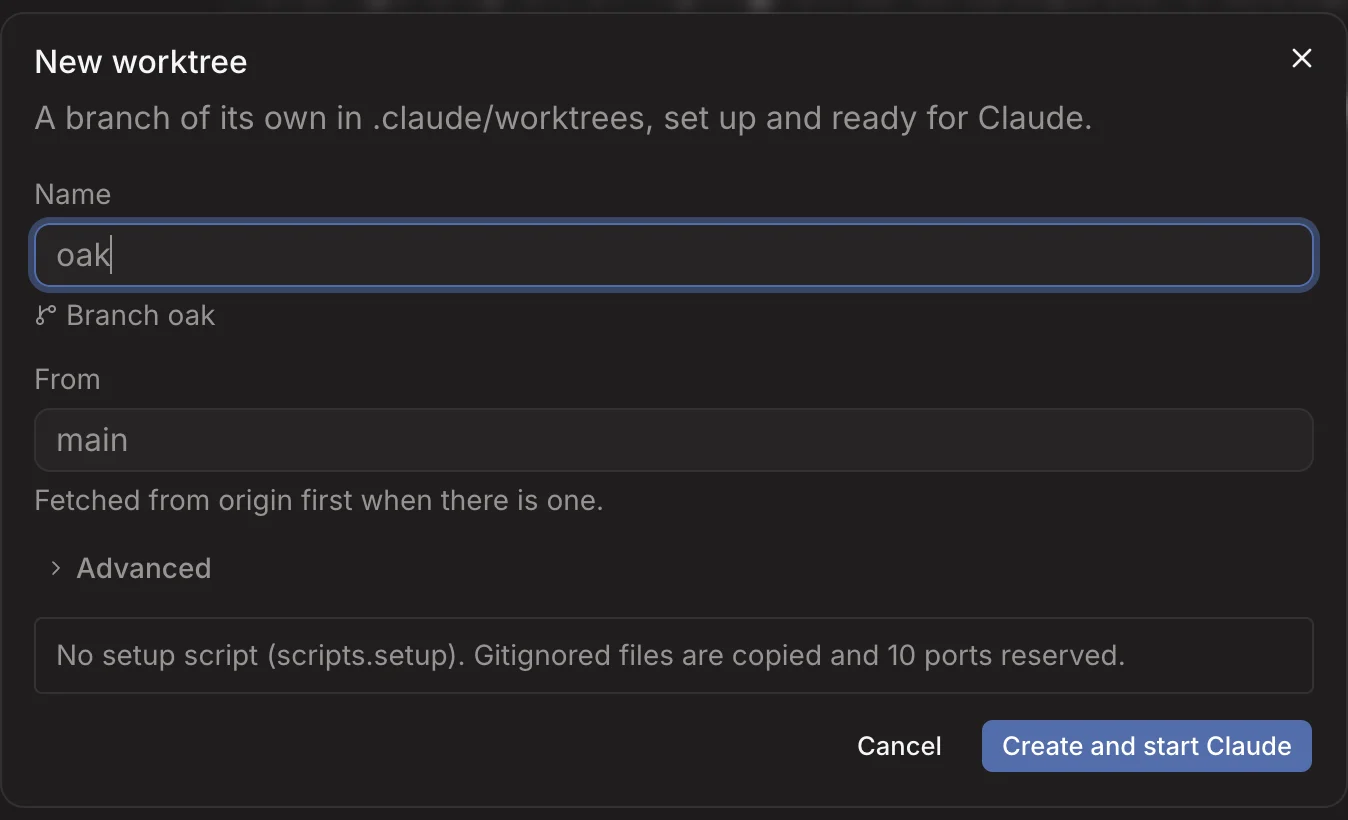
10nx creates .claude/worktrees/<name>, copies your gitignored .env* files into it, reserves 10 ports for it and runs your setup script if the repo has one. The Setup view shows each step. When it's done, Claude opens in the worktree.
3. Give Claude the task
Type in the Agent section's input bar and press Enter. Claude works inside the worktree's folder, on the worktree's branch, so the main checkout stays as it was.
While Claude works, the worktree's pill in the status bar shows its state: working, needs you, or idle.
4. Look at the diff
- Press Ctrl+4 to open the Git view.
- Local Changes lists every file the worktree changed, with the diff beside it.
- Click a line to leave a comment, then Send to Claude to hand your comments back to the session.
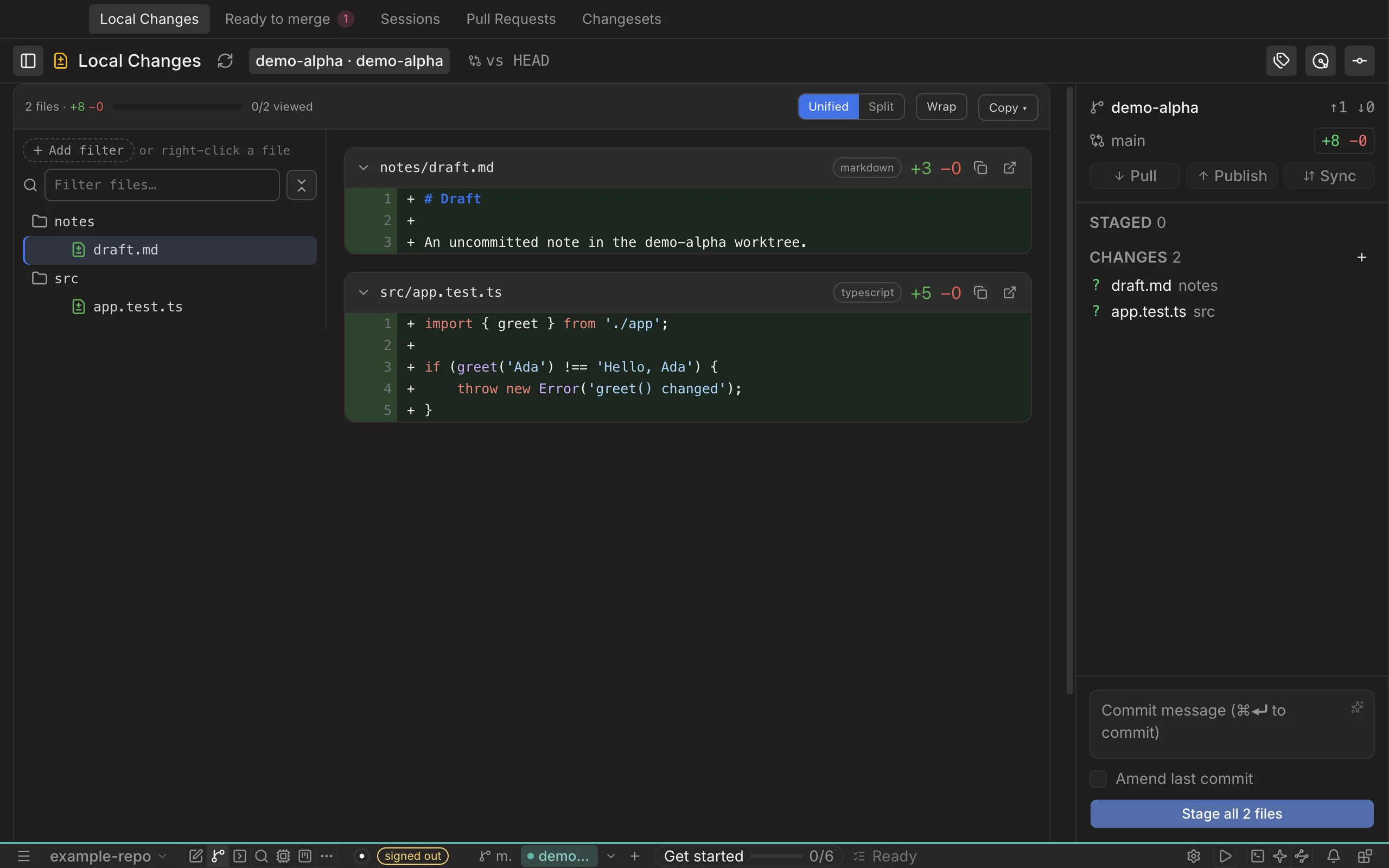
When you're happy, ask Claude to commit, or commit from the terminal section. More in Review and commit an agent's changes.
Check it worked
The worktree strip shows your worktree's pill next to main. Click main and the file tree, tabs and Git view switch back to the main checkout, where none of Claude's changes are.
Next steps
- Workspaces and worktrees: what follows the active worktree, and what doesn't
- Set up a repo for worktrees: a setup script, files to copy and ports
- Run several Claude sessions at once